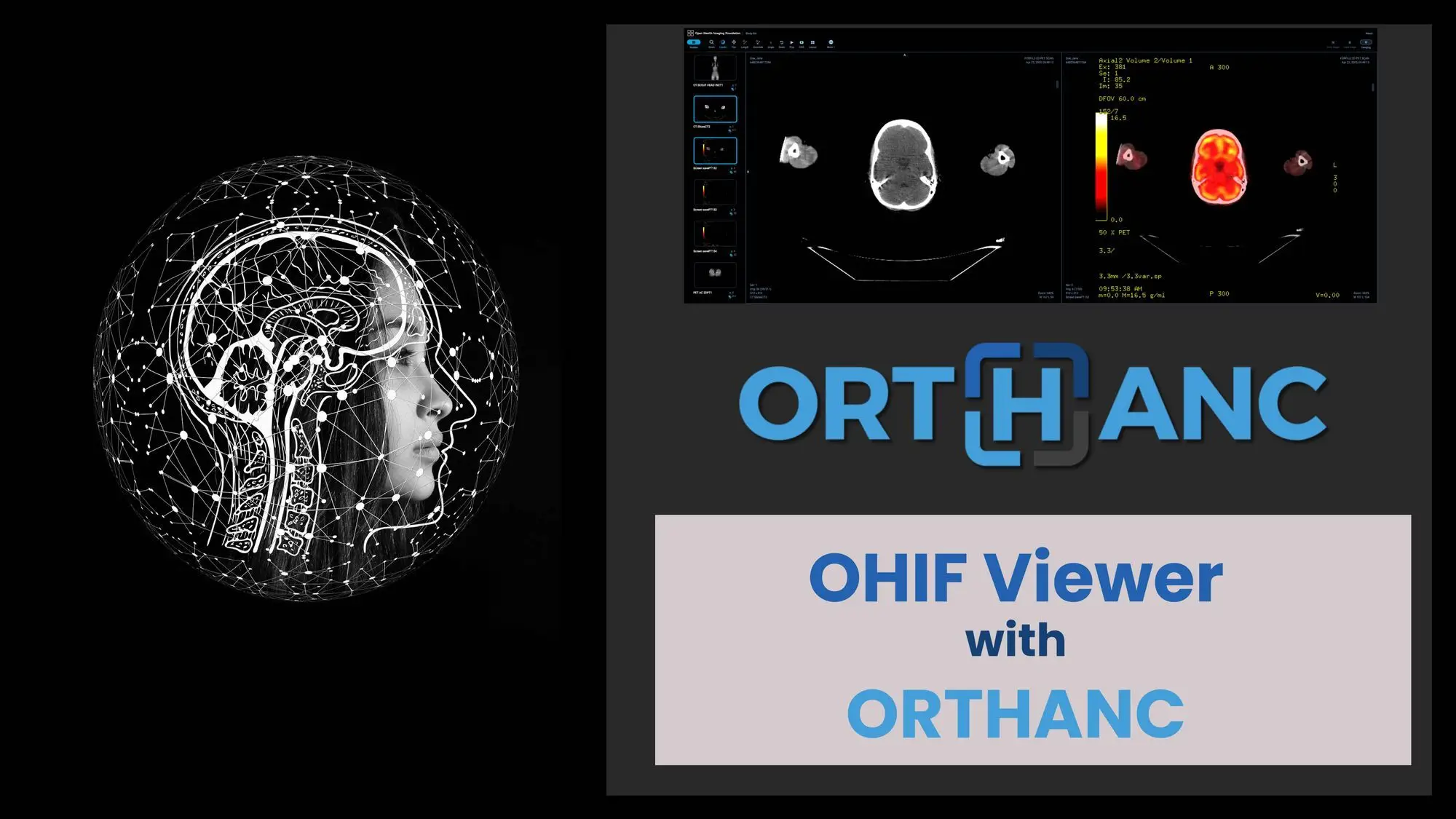
This guide will help you out to OHIF and Orthanc on Docker. The interface for viewing images will be Ohif, and DICOM images will be stored on Orthanc.
Ohif:
is an open source, web-based, medical imaging viewing platform and its free and opensource.
Orthanc:
Its free and open-source, lightweight DICOM server for medical imaging.
For this demonstration, I’m using buntu 20.04 Server, which already has Docker and Docker-compose installed.
Clone the git repository, for which all of the links are provided in the description below.
Change the directory to “ohif-orthanc”
Folder contains:
- Python DICOM importer
- docker-compose file
- nginx config for reverse proxy
- ohif config
- orthanc config
Lets review docker-compose
We are deploying the jodogne/orthanc-plugins Docker latest image for orthanc.
There are two exposed ports for orthanc: 8042 for web access and 4242 for the DICOM port.
We are deploying the most recent image for OHIF, which has port 3000 open for web access.
version: "3"
services:
  pacs:
    container_name: orthanc
    image: jodogne/orthanc-plugins
    ports:
      - 8042:8042
      - 4242:4242
    volumes:
      - ./orthanc.json:/etc/orthanc/orthanc.json:ro
      - ./orthanc_db:/var/lib/orthanc/db/
    restart: always
    networks:
      - pacs

  ohif_viewer:
    container_name: ohif
    image: ohif/viewer
    ports:
      - 3000:80
    environment:
      - APP_CONFIG:/usr/share/nginx/html/app-config.js
    volumes:
      - ./nginx_ohif.conf:/etc/nginx/conf.d/default.conf:ro
      - ./ohif.js:/usr/share/nginx/html/app-config.js:ro
      - ./logo.png:/usr/share/nginx/html/logo.png:ro
    restart: always
    networks:
      - pacs

networks:
  pacs:
Orthanc config
I’ll create a separate video series for orthanc instead of going into great detail to discuss orthanc configuration.
The default DICOM AE title is MAPDR, however you can modify it.
mapdr is the user name, and changestrongpassword is the password.
You can change that something meaningful with strong password.
After making changes in config, make sure to restart the Docker container if it is already running.
Installation
$ pull and run docker container with
$ docker-compose up -d
now our images are pulled and up n running
Go to server ip address for me that is http://server-ip:3000 to access ohif
To import DICOM files directly from OHIF or send images to ORTHANC Server with any dicom software adding AE Title and PORT no for your Orthanc server